How to Reset Firestick Remote – Step-by-Step Guide for All Models (UK)
Experiencing trouble with your Firestick remote? You’re not alone. Many Fire TV users across the UK face common issues like unresponsive buttons, failed connections, or complete pairing loss. Fortunately, the solution is often simple — a quick reset. In this guide, we’ll show you how to reset your Firestick remote for all models, including Fire TV Stick Lite, Fire TV Stick 4K, Fire TV Stick 4K Max, and Fire TV Cube. By following these steps, you can restore your remote’s functionality and enjoy seamless streaming again.
Why Reset Your Firestick Remote?
Your Firestick remote connects to the Fire TV device via Bluetooth. Over time, minor glitches or signal conflicts can disrupt this connection. A reset clears these temporary issues and refreshes the link between your remote and the Firestick. Here are a few common reasons why your Firestick remote might stop working:
- Weak or dead batteries
- Software update interference
- Bluetooth signal blockage or range issues
- Using the remote with multiple Fire TV devices
- Minor firmware bugs
Whatever the cause, a proper reset usually brings your remote back to life within minutes.
How to Reset Firestick Remote – All Models
Resetting your Firestick remote is straightforward, though the exact process varies slightly depending on the model you own.
For Fire TV Stick (Basic, 4K, 4K Max)
- Disconnect your Firestick from its power source.
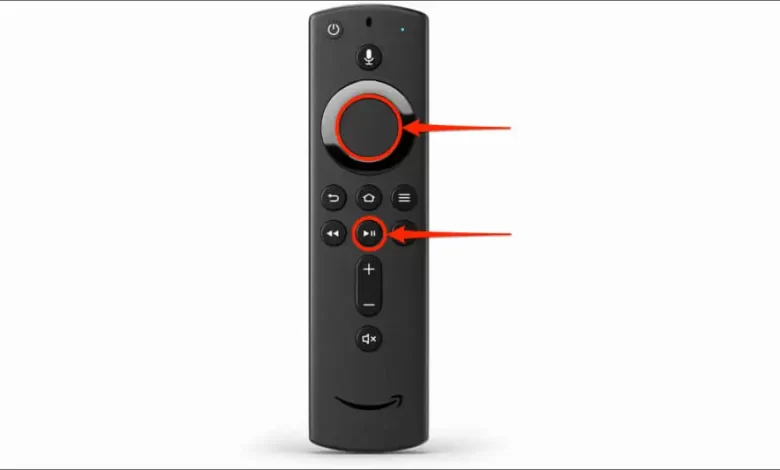
- On the remote, press and hold the following buttons simultaneously for 10–15 seconds: Left Directional + Menu (three lines) + Back
- Release all buttons and wait for 10 seconds.
- Reconnect your Firestick to power and allow it to load fully.
- Finally, press and hold the Home button on your remote for 10 seconds to re-pair it.
For Fire TV Cube
- Unplug your Fire TV Cube and wait for about 30 seconds.
- Hold Left + Menu + Back for 12 seconds, then release.
- Remove the batteries from your remote.
- Reconnect the Cube to power.
- Once the screen loads, reinsert the batteries and hold Home for 10 seconds to pair.
For Fire TV Smart TVs
- Unplug the TV from the socket and wait for one minute.
- On the remote, hold Menu + Left + Back for 10 seconds.
- Plug the TV back in and wait for the Fire TV interface to appear.
- Press and hold the Home button for 10 seconds to pair the remote again.
Troubleshooting Tips Before or After Reset
If your remote still isn’t working, try these quick checks:
- Replace the batteries: Always use new, high-quality alkaline batteries.
- Reduce interference: Keep your remote within 3 metres of your Firestick or TV.
- Use the Fire TV App: Download the Amazon Fire TV app on your smartphone to control your device temporarily.
- Unpair other Bluetooth devices: Too many connections can block your remote from syncing properly.
How to Pair the Remote After Reset
If your remote doesn’t automatically reconnect, here’s how to do it manually:
- Navigate to Settings → Controllers & Bluetooth Devices → Amazon Fire TV Remotes.
- Select Add New Remote.
- Hold the Home button for 10 seconds until your Firestick detects it.
- Select the remote name using your old remote or the Fire TV app to finalise pairing.
Stream Smarter with Smart4K IPTV UK
Once your Firestick remote is back in action, it’s time to make the most of it. With Smart4K IPTV UK users can enjoy ultra-HD live TV, premium sports, movies, and entertainment channels — all in one place. Smart4K IPTV offers:
✅ Over 10,000+ HD channels and VODs
✅ Smooth, buffer-free streaming
✅ 24/7 customer support
✅ Free trial for new users
If you love watching the Premier League, UEFA Champions League, or the latest Netflix hits, Smart4K IPTV is your go-to streaming partner.
Final Thoughts
Resetting your Firestick remote might seem tricky at first, but it’s actually a quick and reliable fix. In most cases, you can have your remote fully functional again within minutes. Whether you’re catching up on your favourite UK shows or streaming live football via Smart4K IPTV, a responsive Firestick remote ensures you never miss a moment of entertainment.
Frequently Asked Questions
1. Can I reset my Firestick remote without turning on the TV?
Yes, but you’ll need to re-pair it after the TV is on to confirm the connection.
2. My Firestick remote still doesn’t work after reset — what next?
Try changing the batteries, unplugging your Firestick for a minute, and re-pairing again. If that fails, consider ordering a replacement remote.
3. Will resetting affect my apps or account?
No, the reset only affects the remote itself. All your Firestick settings and apps remain untouched.
4. Can I use my phone as a Firestick remote?
Yes, the Amazon Fire TV app (available on Android and iOS) lets you control your Firestick just like the original remote.